Easiest Way to Change Your Proxy Settings in Google Chrome
News28/04/2026, 14:53Modified 14/09/2026, 00:464 min read
Easiest Way to Change Your Proxy Settings in Google Chrome
In Chrome, you can find and change proxy settings by clicking three dots (⋮), choosing Settings, and going to System. Select Open your computer’s proxy settings. This will open your OS network menu. Under Use a proxy server, specify the Address and Port entries, then click Save to save the changes.
How To Change Proxy Settings In Chrome?
Google Chrome uses your system-level network settings (Windows or macOS). Some browsers will keep their own internal list of proxies (like Windscribe or others), but Chrome takes you to your Windows or macOS settings. If Windows cannot detect the configuration, follow our guide to Windows proxy detection errors.
This ensures that your browser proxy settings will continue to be the same for your entire internet traffic on your device. Let’s find out how to set proxy in Chrome.
A Quick Guide for Windows and Mac
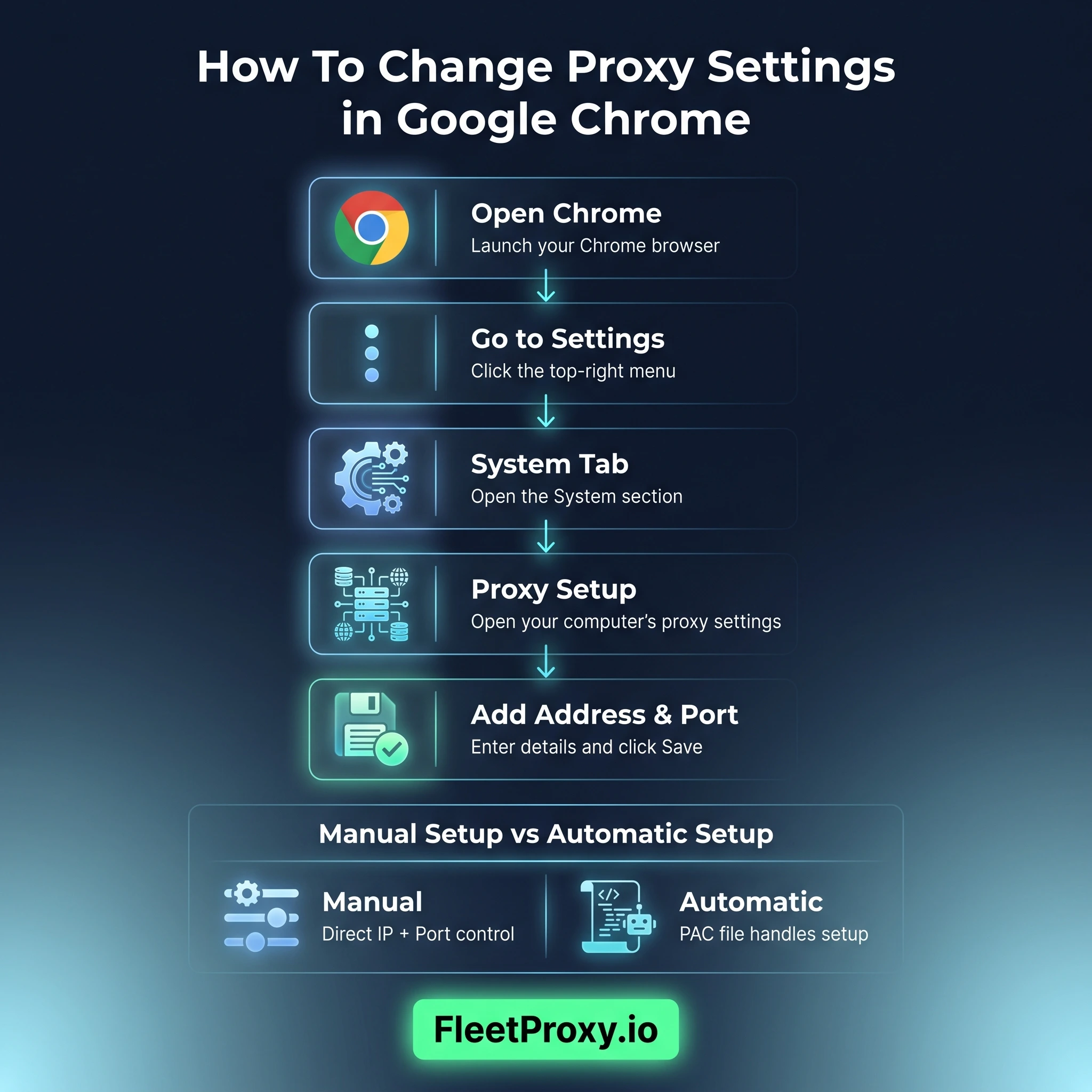
Launch your Google Chrome browser.
• Find the three vertical dots at the top right of your browser.
• From the dropdown, select Settings.
• Go to the System tab on the left-hand side.
• Open your computer’s proxy settings.
• A new window (Windows Settings or macOS System Settings) will pop up.
• Input proxy details, click on Save.
Chrome Proxy Settings Location
A lot of users are confused about this one since they expect to find the "Proxy" tab somewhere in the Chrome UI. Chrome works directly with your OS, which simplifies proxy configuration. You will find this shortcut in the System category of your browser settings.
Or, to even faster find it, just type chrome://settings/system into your address bar. That directly takes you to the link that opens your LAN settings in Chrome.
What are Proxy Settings in Chrome
A proxy server will allow you to hide your IP address, bypass geographic limitations, and mask these types of connections from public Wi-Fi. For a fixed proxy IP in Chrome, see our static ISP proxies.
By setting a proxy in Chrome, you basically tell the browser to send your data via one server, which acts as an intermediate before the data finally reaches the website.
Manual vs. Automatic Configuration
In general, the majority of all users use one of these two methods:
• Automatic Proxy Configuration: A script (PAC file) that your system uses to set configurations automatically.
• Manual Proxy Setup: Where you configure it manually with the exact IP address and port number given by your proxy service.
|
Feature |
Automatic Setup |
Manual Setup |
|
Effort |
Low (requires a URL) |
Moderate (requires IP/Port) |
|
Control |
Controlled by the script |
High (you choose the server) |
|
Stability |
Depends on the network host |
High (direct connection) |
Proxy Server Usage in Chrome for LAN
The other aspect is that you may require; LAN settings in chrome. A proxy server for your LAN Chrome setups if in an office or school environment. Doing so makes sure to route your own local network traffic properly through the organization's firewall.
To configure this:
• Access the Browser Proxy Settings through Chrome.
• You will see a section called Manual proxy setup.
• Toggle the switch to On.
• Fill in the Address and Port.
• If you need to access internal company sites directly, select the check for Don't use a proxy server for local (intranet) addresses.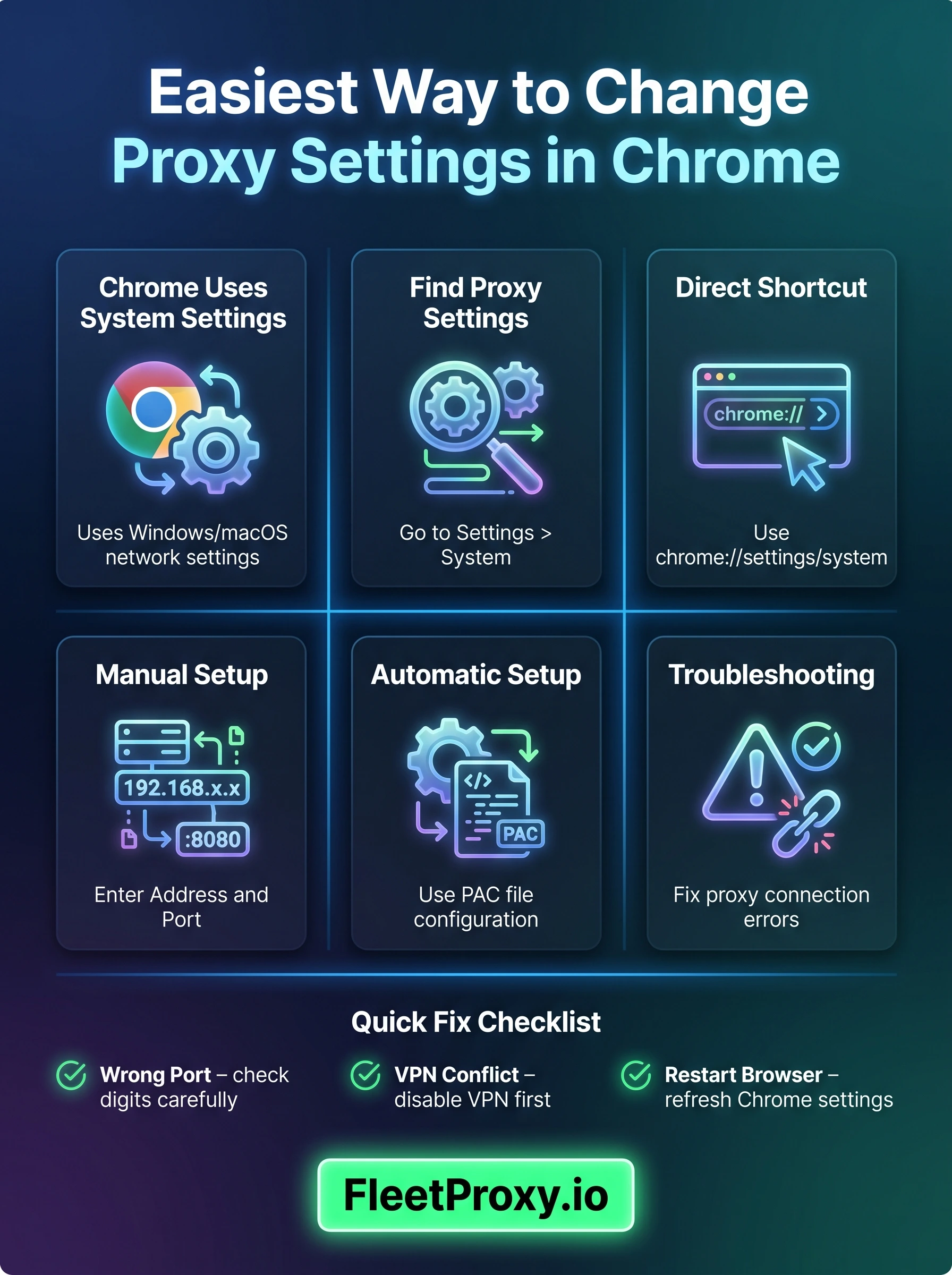
Why Do Chrome Network Settings Change?
When you see that your Chrome network settings often revert or change without your consent, it generally means one of three things:
• Extensions: Some so-called VPNs or "Unblocker" extensions hijack your proxy settings.
• Malware: Malicious software could be sending your traffic to ad-laden servers.
• Workplace Policies: Your IT department might enforce what we call "Group Policies," wherein your settings will be locked.
For that, go and disable your extensions one by one or reset Chrome to its factory settings.
Proxy Settings in Chrome through Extensions
Because the system-level approach is fine, but some people opt for a dedicated Chrome extension. If you change locations often, this is sometimes the simplest way to alter your proxy settings.
How To Troubleshoot Your Proxy Settings in Google Chrome
Sometimes you may get a " No Internet error or Err_Proxy_Connection_Failed after setting the proxy in your Chrome. Don't panic! It typically indicates the proxy server is down or that you entered the credentials incorrectly.
Quick Checklist
• Port Check: Most of the proxies run 80, 8080, or 1080 ports. If even a single digit is wrong, it ends the chain.
• Request Credentials: If your proxy requires a username and password, Chrome will prompt you for them the first time you visit a site.
• Turn off VPN: Many times, the conflict occurs when you are running the VPN and a manual proxy at the same time.
• Reboot Chrome: Occasionally, the browser requires a reset for it to identify the new browser proxy settings.
Summary of Chrome Proxy Commands
Just for power users who want to do it fast, here are the proxy settings google chrome needs a quick reference table:
|
Action |
Shortcut / Path |
|
Open Settings |
Alt + F > Settings |
|
Direct System Path |
chrome://settings/system |
|
Reset Settings |
chrome://settings/reset |
|
Incognito Mode |
Ctrl + Shift + N |
As such, you will have a private and personalized browsing experience by following these steps. Using a proxy server in Chrome is easy, whether you use it for work or personal privacy. To keep your data private and connection speeds high, use a reliable proxy provider such as FleetProxy!

Michael Maelar
Head of Proxy Infrastructure


Michael Maelar leads proxy infrastructure at FleetProxy, where he focuses on residential and mobile IP network performance, ethical sourcing, and rotation engineering. Before joining FleetProxy in 2025, he spent six years working on web scraping infrastructure and anti-bot evasion for e-commerce data teams. He writes about proxy networks, scraping reliability, and the practical tradeoffs between provider tiers.


Ready to try FleetProxy?
Residential proxies from $2.65/GB on real IPs across 100+ countries. Instant activation with 24/7 expert support.
Get StartedMore popular posts
Tips to Use a JP Web Proxy to Browse Japanese Websites Safely.
Have you ever clicked on a link to an exciting Japanese video, a regional news article, or a unique e-commerce site, only to be met with a frustrating error message? "This content is not available in your region." This digital barrier, known as geo-blocking, is a common hurdle for international fans of Japanese culture, researchers, and expats alike.

How to Use SOCKS5 Proxy on iPhone
SOCKS5 proxy is a safe connection protocol that directs your internet traffic over another server. This server covers your actual IP address and provides a new one.
How much does an IP address cost in 2025?
The IP address cost in 2025 varies across regions. Larger blocks are cheaper per IP but costly overall, while smaller blocks offer more stability, clarity and security. No matter the option, understanding these trends helps businesses make smarter and more cost-effective decisions